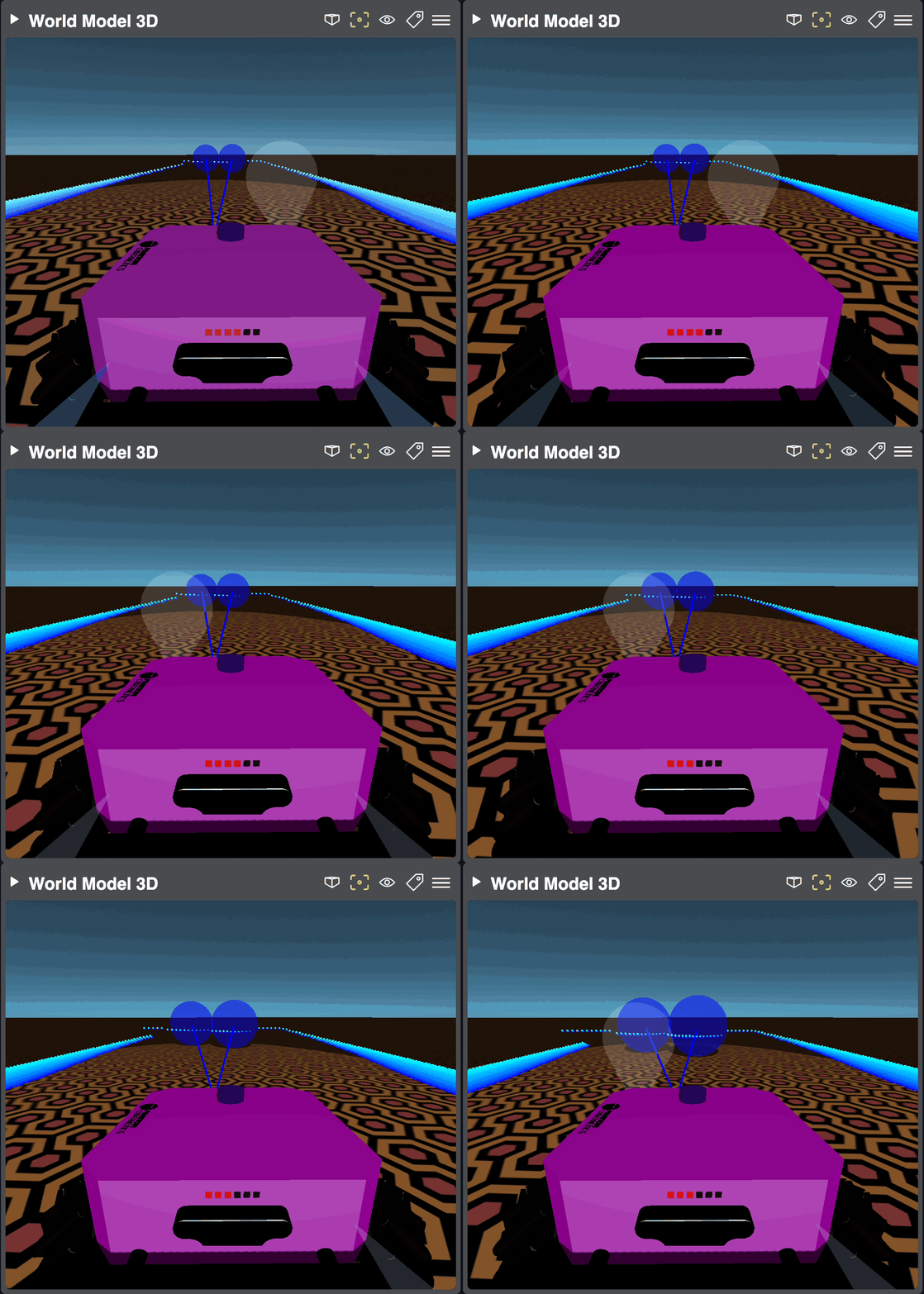
This is a composite widget that displays the URDF model from /robot_description and updates it with transforms from /tf_static and /tf.
Model files are discovered on the robot, uploaded to the Bridge Server and cached there. Supported mesh formats are STL and DAE.
By default, this widget expects the /robot_description, /tf_static and /tf topics to exists and tries to subscribe to them, custom topics can be also used.
The /tf_static and /robot_description topics should be subscribed to as RELIABLE to make sure every published message is received,
the /tf topic is expected to be BEST_EFFORT and update continuously.
The robot’s model only updates when /robot_description changes, or on page reload. Call the /phntm_bridge/clear_cloud_file_cache service to invalidate
the model cache on the Bridge server, then reload the page to fetch the models again.
The URDF model can be meshed with additional data via overlays, several are implemented out-of-the-box and you can also create your own.
This widget allows to switch beween orthographic and perpective camera. Skybox, light and ground plane can be also ajusted.
This overlay displays camera frustums based on the camera model received as sensor_msgs/msg/CameraInfo messages. Each frustum is mapped into the
corresponding frame_id frame on the robot’s URDF model. You can set the display frustum color, near and far plane and even force frame_id in your
phntm_bridge.yaml config file.
/**:ros__parameters:/rgb_front/camera_info:frustum_color:'lime'# color name or hex (e.g. '#00ff00')frustum_near:0.1frustum_far:10.0force_frame_id:'some_frame_id'
This overlay displays vision_msgs/msg/Detection3DArray topic messages, which are often used in computer vision,
as simple oriented 3D bounding boxes or objects in the 3D scene. You can configure both label map, colors and 3D models to be used
for visualizations. The 3D models are extracted from your ROS machine, STL and DAE formats are supported.
All detections are mapped into the correct frames on the robot model according to the frame_id received in message headers.
/**:ros__parameters:/some_3d_detection_topic:label_map:['person','woman','man','camera','TV']# class label mapcolor_map:['red','#00ff00','blue',NULL,'magenta']# colors to use for each classmodel_map:# must be in the same order as the label_map-package://path_to_model/person_model.stl scale=[1.0,1.0,1.0]# stl model with scale set-file://path_to_model/woman_model.dae-none# no model, use oriented bounding box (NULL works, too)-file://path_to_model/camera_model.dae scale=[2.0,2.0,2.0]# collada model with scale set-cylinder scale=[1.0,2.0,1.0]# primitive with scale set, supported primitives are box, cylinder and sphereuse_model_materials:True# whether to use model's own materials (default), or just a color (magenta by default)
Displays sensor_msgs/msg/Range range detection messages as 3D cones mapped into the robot’s frame_id received in message headers.
The min_range and max_range values are taken into account when rendering.
We will be adding more 3D overlays such as visualization markers or
path planning, and so can you.
In order to create a custom overlay plugin, you’ll need to extend the WorldModel3DPluginBase class.
You can examine source code of all the overlays mentioned above for inspiration.
There’s one extra simple example available in the Bridge UI Extras repo
which displays the sensor_msgs/msg/BatteryState topic messages as virtual battery LEDs on back of the robot’s model in our demos.